A slow WordPress site rarely has one big problem. It usually has five small ones stacked on top of each other, and most people fix them in the wrong order: they install a speed plugin, tick every box, break the menu, and still fail the test.
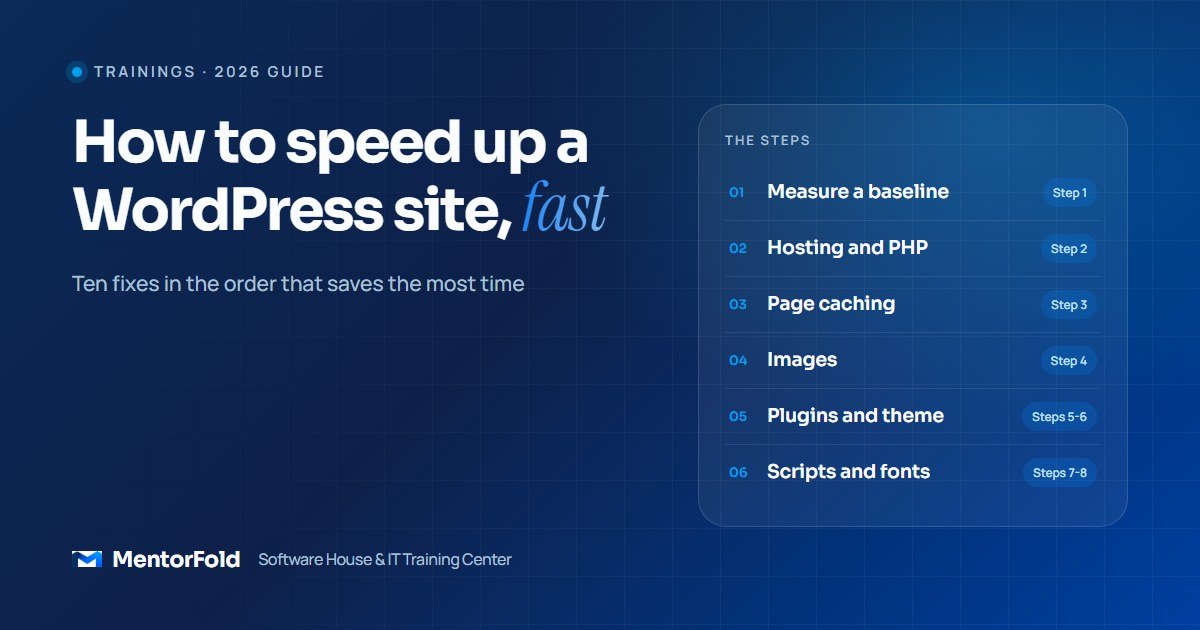
This guide shows you how to speed up a WordPress site in the order that gives the biggest gain for the least effort. Each step tells you what to check, which tools to use, and how to confirm the fix worked. It is written for freelancers and developers who look after client sites, and for business owners who want to understand what their developer should be doing.
What “fast” actually means
Before touching anything, agree on a target. Google’s Core Web Vitals give you three clear numbers:
- Largest Contentful Paint (LCP): the main content should appear within 2.5 seconds.
- Interaction to Next Paint (INP): the page should respond to a tap or click in 200 milliseconds or less.
- Cumulative Layout Shift (CLS): things should not jump around as the page loads; aim for 0.1 or less.
Google assesses these at the 75th percentile of real visits, measured separately on mobile and desktop. In plain terms: three out of four of your visitors should get a good experience, on their own phones and connections, not just on your office Wi-Fi.
Step 1: Measure a baseline before you change anything
If you don’t measure first, you can’t tell which fix helped and which one broke something. Pick three pages: the homepage, a busy inner page (a service or product page) and a blog post. Then test each one.
- PageSpeed Insights (pagespeed.web.dev): shows two kinds of data. According to Google’s documentation, field data reflects real users over the previous 28 days, while lab data comes from a single simulated test with Lighthouse. Field data is what visitors feel; lab data is what you debug with.
- Chrome DevTools > Network and Performance tabs: shows which files load, how big they are and what blocks the page.
- Query Monitor (free plugin): shows slow database queries and which plugin is causing them. Use it on a staging copy or remove it when you’re done.
Write the mobile LCP, INP, CLS and total page size for each page in a simple spreadsheet. Re-test after every step. Remember that field data takes weeks to catch up, so use lab results for day-to-day checks.
Step 2: Fix the foundation: hosting, PHP and the database
No plugin can rescue a server that takes two seconds to start responding. In PageSpeed Insights, look at Time to First Byte (TTFB). If it is high even on a simple page, the problem sits below WordPress.
- Check the PHP version. In the dashboard go to Tools > Site Health > Info > Server. WordPress’s official requirements recommend PHP 8.3 or greater, and MariaDB 10.11+ or MySQL 8.4+. Older versions still run, but they are end-of-life and miss years of performance and security work. Most hosts let you switch PHP versions in the control panel; test on staging first.
- Look at the hosting plan. Cheap shared hosting puts hundreds of sites on one server. If TTFB stays high after caching, a managed WordPress host or a small VPS is often the single biggest upgrade.
- Add object caching on dynamic sites. WooCommerce stores, membership sites and LMS platforms run many database queries that page caching can’t skip. If your host offers Redis or Memcached, enable it with a plugin such as Redis Object Cache.
Step 3: Turn on page caching (one plugin only)
Without caching, WordPress builds every page from scratch with PHP and database queries on every visit. Page caching saves a finished HTML copy and serves that instead. It is usually the largest single improvement on a typical brochure site or blog.
- Use your host’s cache first if it has one. Many managed hosts cache at the server level, and adding a second caching plugin on top can cause conflicts.
- On LiteSpeed servers, use LiteSpeed Cache.
- Elsewhere, common choices are WP Rocket (paid), W3 Total Cache or WP Super Cache.
The rule: one caching layer per job. Two page-cache plugins fighting each other is one of the most common causes of broken layouts and stale content.
Step 4: Shrink your images
Images are usually the heaviest part of a page, and the hero image is often the LCP element itself. Work through this list:
- Resize before upload. A 4000-pixel camera photo shown in a 1200-pixel space wastes bandwidth. Export at roughly the largest size it will display.
- Use modern formats. WordPress supports WebP and AVIF uploads. Tools such as ShortPixel, Imagify or EWWW Image Optimizer can convert and compress your existing library in bulk.
- Don’t lazy-load the hero image. WordPress lazy-loads images by default, which is great for images further down the page. The main image at the top should load immediately, or your LCP gets worse.
- Set width and height. Images without dimensions make the layout jump as they load, which hurts CLS.
- Replace sliders and autoplay video backgrounds on the homepage with one strong static image. They are heavy and few visitors wait for slide three.
Step 5: Audit your plugins
The number of plugins matters less than what each one loads. One badly built plugin can do more harm than twenty light ones. Go through the list and sort every plugin into three groups:
- Keep: it does something the business needs.
- Replace: it’s needed, but it is heavy or overlaps with another plugin (two SEO plugins, three form builders).
- Remove: inactive, abandoned, or installed “to try once”. Deactivate and delete it.
Query Monitor and the DevTools Network tab show which plugins add the most scripts, styles and queries. Watch for social share widgets, live chat tools, popup builders and sliders that load on every page even when they are used on one.
Step 6: Check your theme and page builder
Multipurpose themes with dozens of demos often load code for features you never use. Page builders add their own CSS and JavaScript on top. You don’t always need to rebuild, but you should know what you’re carrying.
- Test a plain page with your theme active, then the same content with a default theme such as Twenty Twenty-Five on staging. A large gap points to the theme.
- If you use Elementor, Divi or similar, turn on their built-in performance options (optimised CSS loading, reduced DOM output) and remove unused widgets.
- For new builds, a lightweight theme such as GeneratePress, Kadence or Astra, or a block theme using the Site Editor, starts much leaner.
Step 7: Load fewer scripts, and load them later
JavaScript is the main reason pages feel sluggish when you tap something, so this step matters most for INP.
- Unload scripts where they aren’t needed. A contact form plugin doesn’t need to load on your blog posts. Perfmatters or Asset CleanUp let you disable scripts per page.
- Defer or delay non-essential JavaScript. Most caching plugins can defer scripts so they don’t block the first paint, and delay chat widgets and tracking tags until the visitor interacts.
- Review third-party tags. Every analytics, pixel, heatmap and chat tool is extra code from someone else’s server. Remove the ones nobody checks.
- Minify carefully. Minifying CSS and JS is safe; combining files is less useful on modern servers and breaks things more often. Test after each change.
Step 8: Host fonts locally and use fewer of them
Each font family and weight is another file. Limit yourself to two families and three or four weights. Host fonts on your own domain instead of loading them from an external service, preload the main one, and use font-display: swap so text shows immediately in a fallback font. Many themes and performance plugins have a “host Google Fonts locally” option.
Step 9: Add a CDN
A content delivery network stores copies of your static files on servers around the world, so a visitor in London and a visitor in Sydney both download from somewhere nearby. If your clients or audience are international, this is worth doing. Cloudflare has a free plan; many hosts include their own CDN. Some setups can also cache full HTML pages at the edge, which cuts TTFB further.
Step 10: Clean up and keep it fast
Speed slowly decays as content, plugins and tracking tags pile up. Build a short monthly routine:
- Limit post revisions and clear spam comments and expired transients (WP-Optimize can do this; take a backup first).
- Update WordPress core, the theme and plugins on staging, then live.
- Re-test your three baseline pages and compare with your spreadsheet.
- Ask one question before every new plugin or tag: what will this add to every page load?
Mistakes to avoid
- Chasing a perfect 100 score. The lab score is a debugging tool. Passing Core Web Vitals for real users is the goal.
- Stacking optimisation plugins. Two caching or two minification plugins create conflicts that are hard to trace.
- Testing only on desktop. Most sites fail on mobile first. Always check the mobile tab.
- Changing ten things at once. When something breaks, you won’t know which change caused it.
- Working on the live site. Use a staging copy and keep a fresh backup before every change.
Quick checklist
- Baseline recorded for three pages (mobile LCP, INP, CLS, page size)
- PHP 8.3 or newer, healthy TTFB, object cache on dynamic sites
- One page-caching layer active
- Images resized, converted to WebP or AVIF, hero image not lazy-loaded
- Unused plugins deleted; heavy ones replaced
- Theme and builder performance options turned on
- Scripts unloaded where unused; third-party tags reviewed
- Fonts hosted locally, two families maximum
- CDN in place for international visitors
- Monthly clean-up and re-test scheduled
Frequently asked questions
Why is my WordPress site so slow?
The most common causes are slow hosting, no page caching, oversized images, and plugins or themes that load too much JavaScript on every page. Check TTFB first: if it’s high, start with hosting and caching; if it’s fine, look at images and scripts.
What is the best plugin to speed up WordPress?
There isn’t one best plugin. Use your host’s cache or LiteSpeed Cache on LiteSpeed servers; otherwise WP Rocket, W3 Total Cache or WP Super Cache. Pair it with an image optimiser. No plugin fixes poor hosting or a bloated theme on its own.
Do too many plugins slow down WordPress?
Not by number alone. What matters is what each plugin loads and when. A few heavy plugins that add scripts to every page hurt more than many small ones that only run in the dashboard.
How long does it take to speed up a WordPress site?
Caching, image compression and plugin clean-up can often be done in a day on a small site. Lab scores change straight away, but PageSpeed Insights field data covers the previous 28 days, so allow about a month for real-user results to reflect your work.
Learn it properly, or let us handle it
Speed optimisation is one of the most requested WordPress jobs on freelance platforms, and it is a skill you can practise on your own sites today. MentorFold’s online WordPress Development course covers building and optimising real business sites, and HTML and CSS Development helps you understand what’s happening under the theme. If you’re building your first client portfolio, a before-and-after speed project makes a strong case study; see our guide on building a freelance portfolio with no experience.
Running a business and just want a faster site? MentorFold builds and optimises WordPress websites for clients worldwide. See our services or contact us for a speed review.